3. Software Setup#
This step takes approximately 2 minutes.
Notes for Legacy Users
If your driver version is below V5.x.x, please contact technical-support team for upgrade instructions before proceeding.The legacy driver uses a different firmware image; installing the packages in this guide alone will not complete the upgrade. You must also flash the matching firmware. New units ship with the required firmware—proceed directly with the tutorial steps.
Host-PC requirements
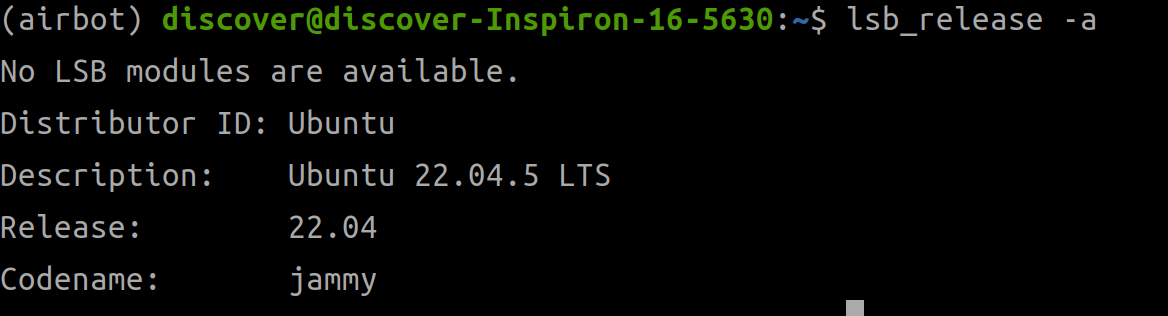
- OS: Ubuntu 20.04 or newer
- Python: 3.9+ (mandatory only if you use the SDK))
- CPU: ≥4 cores (real-time control & simulation)
- GPU RAM: ≥8 GB (≥10 GB recommended for pi0 inference; ≥16 GB for DISCOVERSE simulator)
- Disk: ≥5 GB free for OS, software and data
- USB: Ensure enough USB ports for all peripherals (≥3 recommended for ALOHA/Mobile ALOHA).
3.1 Software Preparation#
Download the installation bundle from technical support. After extracting you will obtain:
- AIRBOT Play driver / daemon (
airbot-configure) - SDK: Python(
airbot_py), C++ (airbot_cpp)
Use a virtual environment
Create an isolated Python environment with Conda to avoid dependency conflicts and simplify SDK demo runs:
conda create -n airbot python=3.9
conda activate airbot
New to Conda? Allow 10–20 min to follow the official guide
3.2 Software Configuration Guide#
3.2.1 Install Docker Engine#
Source
This section is an excerpt from the official Docker documentation: original document.
Install the required packages:
sudo apt-get update
sudo apt-get install -y ca-certificates curl
sudo install -m 0755 -d /etc/apt/keyrings
sudo curl -fsSL https://mirrors.ustc.edu.cn/docker-ce/linux/ubuntu/gpg -o /etc/apt/keyrings/docker.asc
sudo chmod a+r /etc/apt/keyrings/docker.asc

echo \
  "deb [arch=$(dpkg --print-architecture) signed-by=/etc/apt/keyrings/docker.asc] https://mirrors.ustc.edu.cn/docker-ce/linux/ubuntu \
  $(. /etc/os-release && echo "${UBUNTU_CODENAME:-$VERSION_CODENAME}") stable" | \
  sudo tee /etc/apt/sources.list.d/docker.list > /dev/null

sudo apt-get update
sudo apt-get install -y docker-ce docker-ce-cli containerd.io docker-buildx-plugin docker-compose-plugin
Grant your user the permissions required to create and run Docker containers:
Log out and back in for the group change to take effect.

3.2.2 Install Driver Package#
Obtain the .deb file from technical support, open a terminal in that folder and run:
After installingairbot-configure, basic udev rules for the SocketCAN interface are automatically created, and the utility airbot-bind-interface is provided to bind the device to a specific interface name.
Verify
If you see the success message, or run:
If the correct version appears, the installation succeeded.
3.2.3 Install Python SDK (optional)#
Run the following command:
Verify
If you see the success message, or run:
If the correct version appears, the installation succeeded.
3.2.4 Install C++ SDK (optional)#
Run the following command (example: x86_64, Ubuntu 22.04 Jammy):